How to Import Workouts from Hevy to Gainflow (2026 Guide)
You've been logging workouts in Hevy for months — maybe years. Every bench press PR, every heavy squat session, every hard-earned volume number is sitting in that app. Now you're considering a switch: maybe Hevy's paywall caught up with you, maybe you want AI video analysis of your technique, maybe you just want a workout tracker that doesn't nag you to upgrade every third session.
The biggest fear when switching apps is losing years of history. Starting over from zero isn't just annoying — it breaks progressive overload tracking, wipes your PRs, and hides your volume trends. Good news: you don't have to. Gainflow ships with native Hevy CSV import, meaning every workout you've ever logged moves over in a few taps. This guide walks you through the entire process — from exporting your Hevy data to seeing it live inside Gainflow.
Why People Are Switching from Hevy to Gainflow
Before the how-to, a quick note on the why. We talked to users making the switch and the same three reasons come up:
Top reasons lifters leave Hevy
Core features stuck behind Hevy Pro
Custom exercises, unlimited routines, and advanced charts are all locked behind Hevy's paid tier. In Gainflow everything you need to progress is free — no reminder pop-ups, no limits.
No AI technique analysis
Hevy is a pure logger — it records numbers. Gainflow adds AI Video Analysis: record a set, upload it, and get corrections on depth, tempo, and bar path. A logger can't see your form; a camera with AI can.
Own your data, no lock-in
Gainflow has free CSV export built in, so your history is never trapped. Whatever you log in Gainflow, you can take with you — the opposite of how most tracking apps treat your data.
Personal Records front-and-center
Every new 1RM estimate, heaviest set, and rep PR is surfaced automatically with a Personal Records Badge — not buried in a stats tab you'll forget to open.
What Gets Imported (and What Doesn't)
Setting honest expectations before you start saves frustration later. Here's what actually crosses over in a Hevy → Gainflow import:
WHAT TRANSFERS
- Workout dates & times — your entire training history, chronologically
- Exercises — mapped automatically to Gainflow's library, including your custom Hevy-only movements
- Every set — weight, reps, and set order preserved exactly
- Set notes — any comments you logged on individual sets
- Routine names — so your "Push A" and "Pull B" show up as-is
- Body measurements — Gainflow imports both workouts and measurements, so your weight, body fat, and circumference history comes along too
- PR history — Gainflow automatically recalculates every personal record from the imported data, so you don't lose your 1RMs
What doesn't transfer
Progress photos
Hevy's CSV export is text-only, so photos don't travel with it. You can re-upload them directly to Gainflow if you want them in one place — a 2-minute job, not a re-building-from-scratch job.
Social features (followers, likes)
These are account-specific and don't transfer. Your training data is what matters — and that all comes with you.
To make this concrete: here's the same squat strength chart before and after the import. Left is what the user had in Hevy, right is what shows up in Gainflow — same curve, no gaps.
Hevy — strength chart before export
Gainflow — same chart after import
Step 1: Export Your Data from Hevy
The first job is getting your data out of Hevy as a CSV file. Hevy lets you do this for free, no Pro subscription required.
Exporting your Hevy workouts
1. Open Hevy and go to your Profile
Tap your profile icon in the bottom-right corner, then open Settings (the gear icon).
2. Find "Export Data"
Scroll down to the account section and tap Export Workout Data. Hevy will prepare a CSV file with your entire workout history.
3. Save the CSV to your phone
Hevy emails you the file or saves it directly to Files / Drive — whichever you pick, make sure you remember where the file lands. A name like hevy_workouts.csv is typical.
4. Don't open or edit the CSV
Resist the urge to "clean it up" in Excel. Opening the file in spreadsheet apps can silently change date formats and break the import. Leave it untouched.
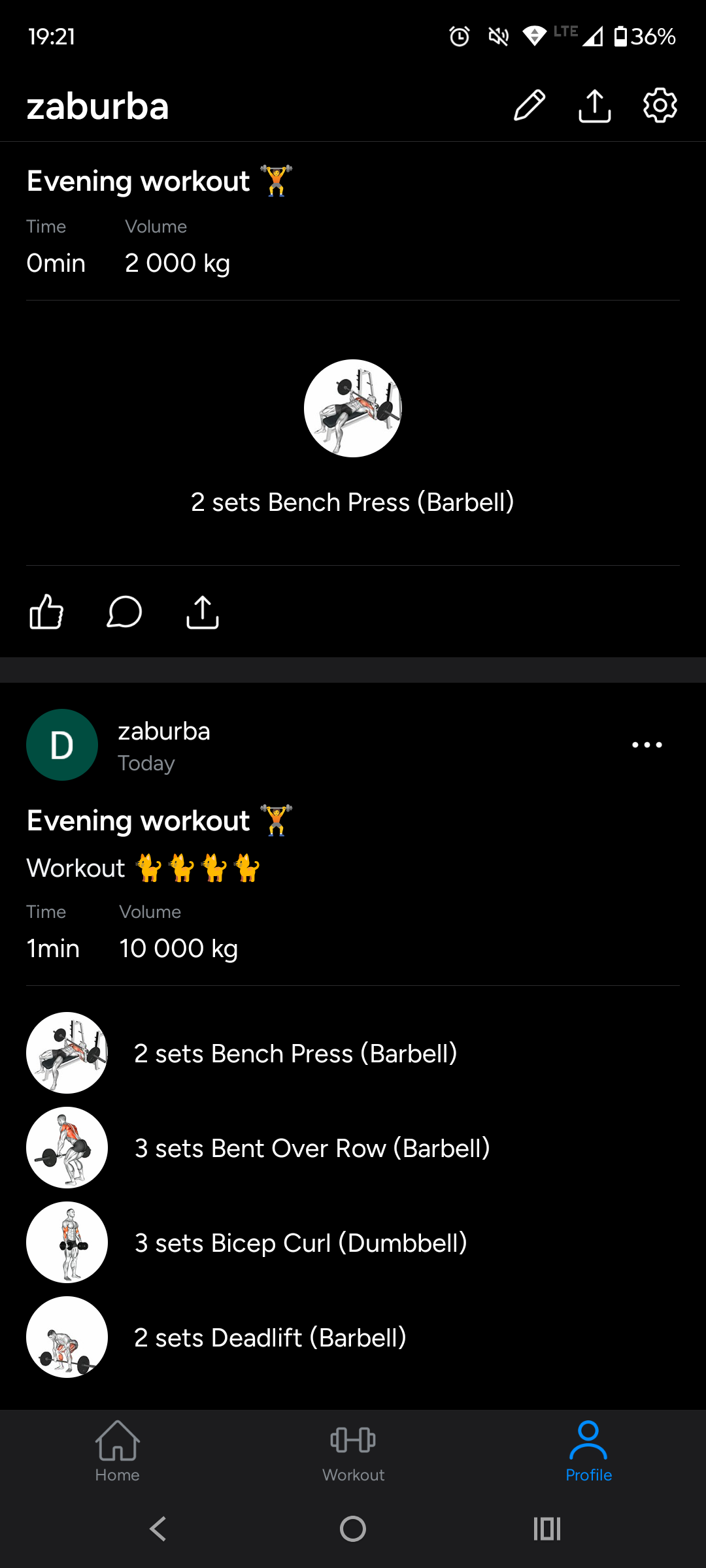
Your full Hevy workout list — every single one of these sessions comes with you.
Tip: export from the same phone you'll import on
It removes one step (no need to AirDrop, email, or sync the CSV across devices). If that's not possible, cloud storage like iCloud Drive or Google Drive works fine.
Step 2: Install Gainflow and Create an Account
If you don't have Gainflow yet, grab it from the App Store or Google Play — both are linked at the bottom of this article. Installation takes under a minute.
Create a free account when prompted. An account is required for imports because your data needs somewhere to sync. It also means that if you lose your phone, your imported Hevy history is safely in the cloud, not trapped on the device.
Step 3: Import the CSV into Gainflow
This is the part where years of Hevy history become part of your new Gainflow profile in a few taps.
Import flow inside Gainflow
1. Open Gainflow → Settings
Tap the profile icon, then open Settings. Look for the Data (or Import & Export) section.
2. Tap "Import"
No source selection needed. Gainflow auto-detects the format — it recognizes Hevy, Strong, and Gainflow's own CSV automatically, so you just hand it the file and it figures out the rest.
3. Pick your CSV file
The system file picker opens — navigate to wherever you saved the Hevy export and select it. If the file lives in Drive or iCloud, the picker shows those too.
4. Review the preview
Gainflow shows how many workouts, exercises, sets, and measurements it found. Double-check the counts match what you expected — if Hevy says you've logged 340 workouts, Gainflow should report the same.
5. Confirm import
Tap confirm and let it run. For most users (a year or two of Hevy data), the import finishes in under 30 seconds. Big histories with 500+ workouts may take a minute or two.
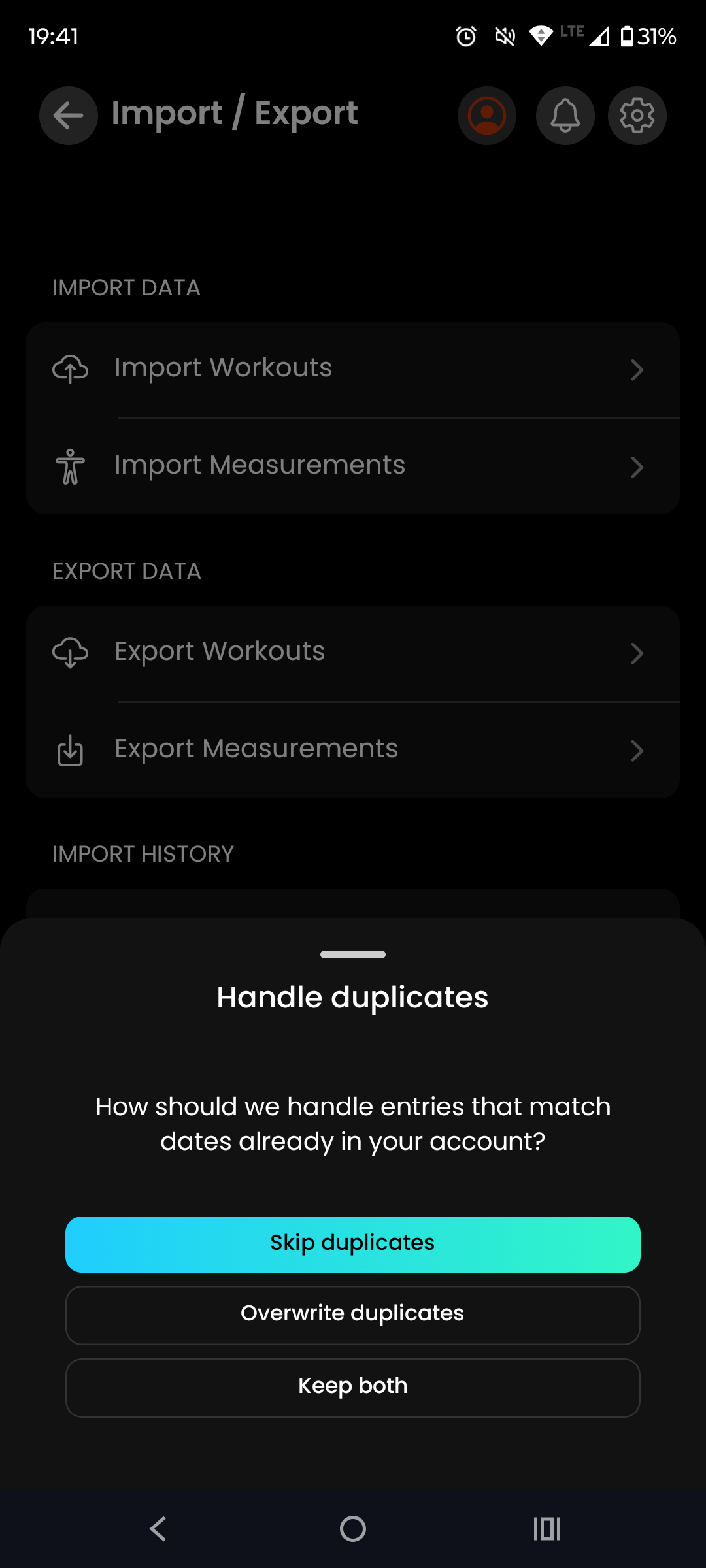
Gainflow asks how to handle any duplicate sessions it detects.
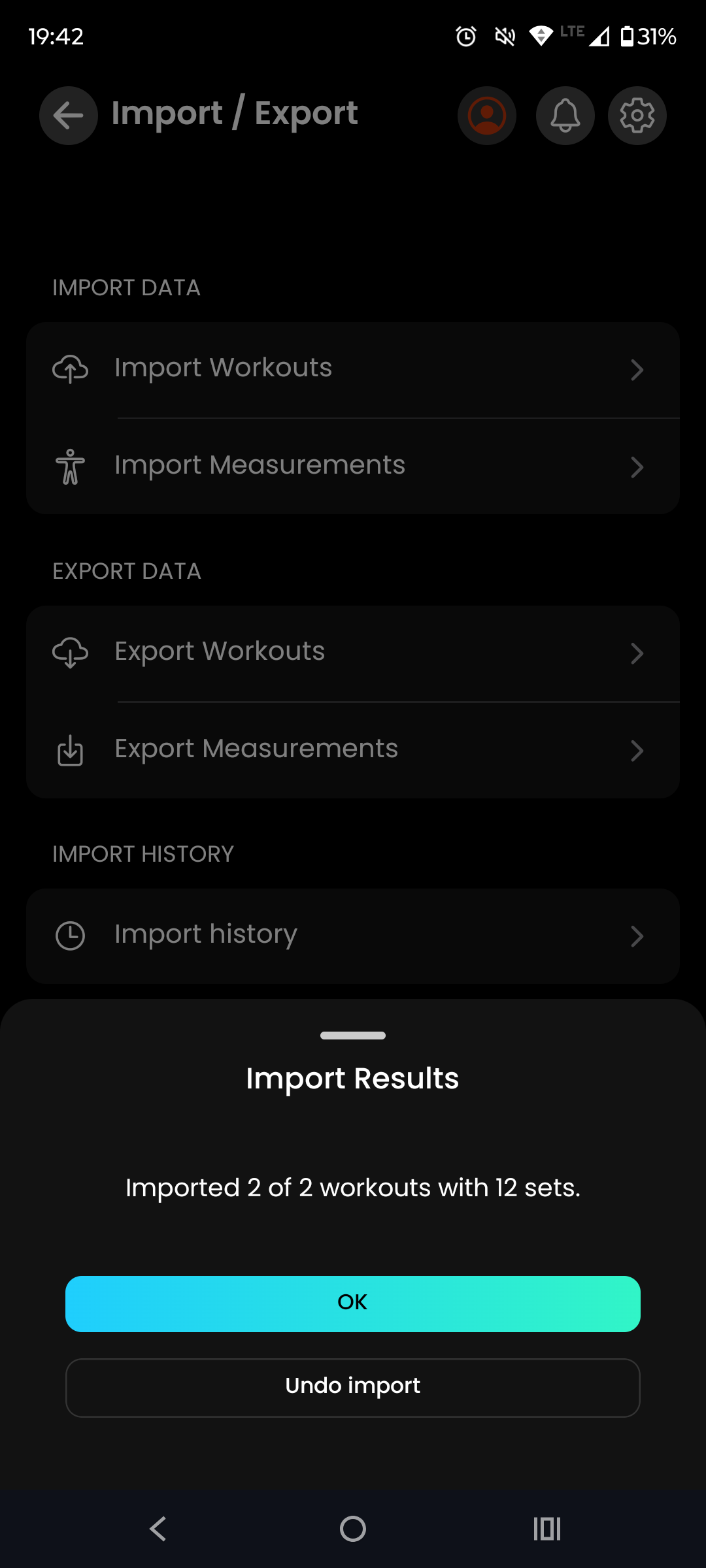
Summary screen — every Hevy workout accounted for.
Step 4: Verify Your Data in Gainflow
Don't just trust the "import complete" screen — spend two minutes making sure everything looks right. Check these four things and you'll know instantly if the import was clean:
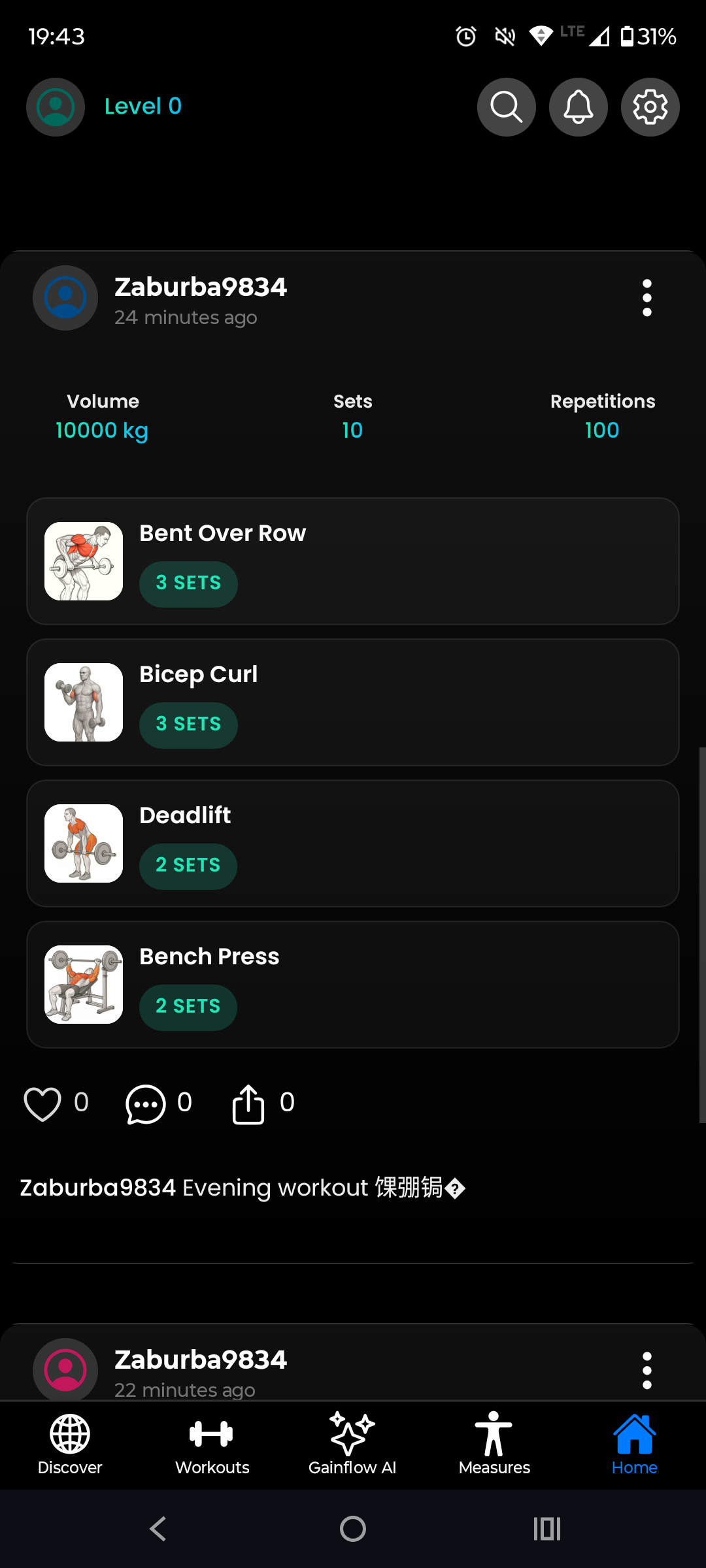
Your Hevy sessions, now living inside Gainflow's History tab.
Your 2-minute verification checklist
Home tab → workout list
Under the chart on the Home tab you'll find your imported workouts. Scroll back to your first logged session — the date, exercises, and top set weights should match what you remember from Hevy. If they don't, stop and re-import.
PR badges on sessions
Gainflow attaches PRs directly to the workouts where they happened — not a separate tab. Scan your imported history and you should see auto-calculated 1RM estimates, heaviest-set markers, and rep PR badges on the right sessions. Verify your three main lifts (bench, squat, deadlift) look right.
Strength progression charts
Go to charts for any exercise you've been doing for 6+ months. You should see a continuous line — no gaps. Gaps usually mean an exercise name wasn't matched and imported as a custom entry.
Last 4 weeks
Check that your most recent Hevy workouts show up with correct volumes. This matters because you'll keep training — the new Gainflow sessions need to continue from where Hevy left off.
Troubleshooting: Common Import Issues
Imports work cleanly for most users, but if something looks off, here are the usual suspects and fixes.
Import fails or gets stuck
Usually a corrupted CSV (opened and re-saved in Excel) or an unstable connection. Fix: re-export from Hevy, don't open the file, make sure you're on Wi-Fi, and try again. If it still fails, contact Gainflow support with the file and they'll look at it directly.
Dates look wrong (off by one day, or showing as future)
CSV date formats are the classic culprit — Hevy exports in UTC, which can shift dates by a day depending on your time zone. Gainflow normalizes this during import. If you see weirdness, check your phone's time zone is set correctly before running the import.
My volume charts start low and ramp up
Not a bug — that's your actual history showing. If you started with lighter weights in Hevy years ago, the chart shows that. Zoom into the last 3-6 months for a more relevant view of your current trajectory.
What to Do Next (Now That You're In)
Importing is only step one. Here's how to get the most out of Gainflow once your Hevy data is inside:
First week in Gainflow
Pick your next workout and let Gainflow auto-fill your starting weights based on your imported Hevy history. The app suggests weights for each set that match your last session, so you keep progressing without having to remember numbers.
Record one set with AI Video Analysis. This is the feature Hevy simply doesn't have — it spots form issues you can't see on your own. Start with a moderate-weight squat or bench press.
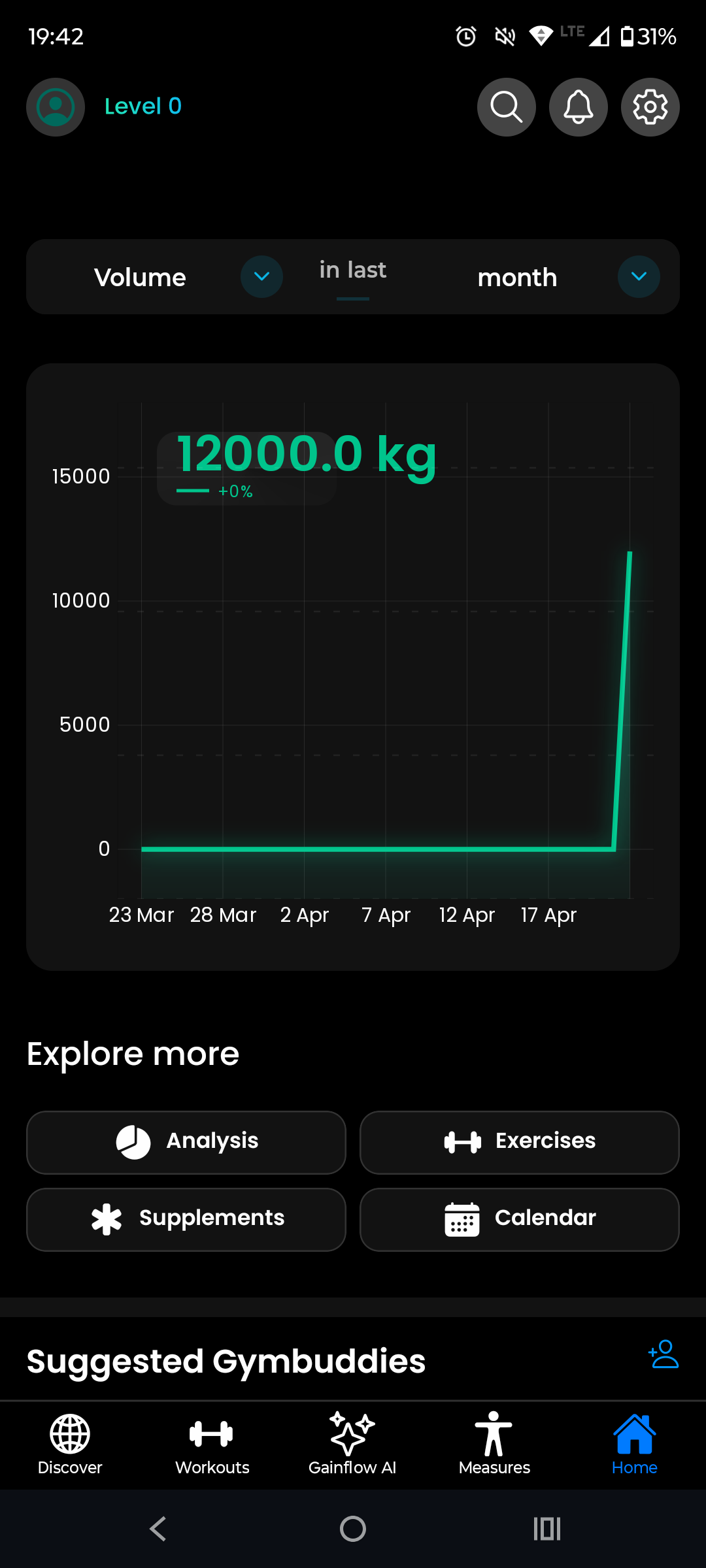
Scroll through the Home tab — underneath the strength chart you'll see your imported sessions, and the ones where Gainflow auto-detected a PR are marked with a dedicated badge. It's a satisfying payoff for five minutes of import work — and a clean baseline for everything you're about to beat.
FAQ: Hevy to Gainflow Migration
Is the Hevy import free?
Yes. Import, export, and core workout tracking in Gainflow are 100% free — no "trial" that expires into a paywall. The only paid tier (Gainflow Plus) unlocks advanced AI features, not basic logging.
Can I still use Hevy after importing?
Absolutely. Importing doesn't touch your Hevy account — your data stays in Hevy too. Plenty of people run both for a few weeks while they decide. Just make sure you don't double-log the same workout in both apps, or you'll confuse your volume numbers.
Will my Hevy Pro subscription transfer?
No — they're separate apps with separate billing. Cancel Hevy Pro whenever you're ready. Most of what Pro unlocks in Hevy (unlimited routines, custom exercises, advanced stats) is free by default in Gainflow, so you won't miss it.
How long does the import take?
For a typical year of logging (~150 workouts), under 30 seconds. For power users with 3+ years of history, a minute or two. The phone stays usable during the import; it runs in the background.
What about importing from Strong or other apps?
Yes — Gainflow also supports Strong app imports. The flow is identical: export from Strong, hand Gainflow the CSV, and the format is auto-detected. Same goes for Gainflow's own CSV exports if you're moving between devices or accounts.
What if I want to go back to Hevy later?
Gainflow has its own CSV export — your data is never locked in. Export any time, import elsewhere. This is on purpose; we'd rather earn your usage than trap it.
The Bottom Line
Switching gym apps used to mean losing years of progress data. It doesn't anymore. The Hevy → Gainflow import takes about five minutes end-to-end, and every set, rep, and PR survives the trip. On the other side you get AI technique analysis, free access to everything Hevy gates behind Pro, and a tracker that works with you — not one that interrupts you with upgrade prompts mid-set.
If you've been on the fence about switching, the import feature is the thing that removes the last real excuse. Your next PR is going to happen in one app or the other. Pick the one that actually helps you see why your squat stopped moving.
Ready to Leave Hevy Behind?
Download Gainflow, import your entire Hevy history in minutes, and keep every PR. Free forever — with AI video analysis, auto-detected imports, and no paywall on the features you actually use.